Vexa: AI Video & Photo Maker
- 3.7
- Rating
- 100.00K
- Installs
- Free
- Price

 Analysis by App-foxy
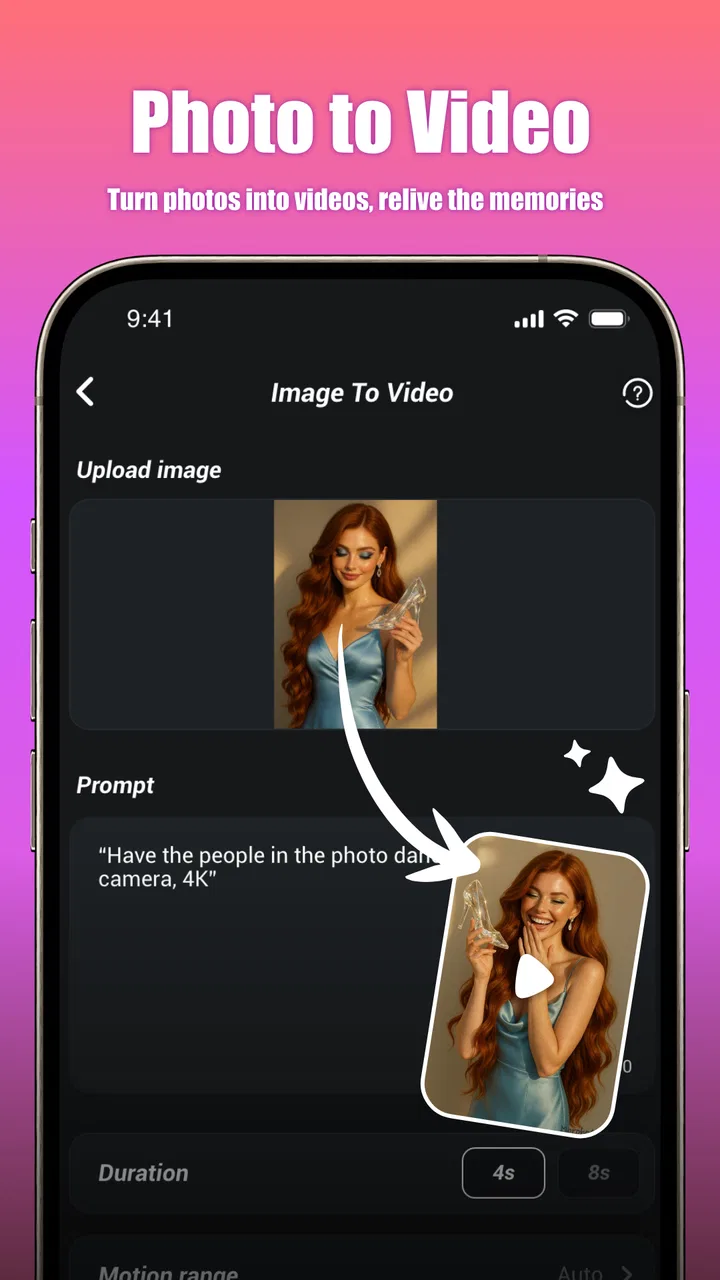
I approached Vexa: AI Video & Photo Maker as a practical lifestyle tool rather than a full video-editing suite. Its main appeal is simple: start with a still image, apply AI-generated motion and a creative treatment, and turn the result into something that feels more alive than an ordinary photo. That makes it interesting for social posts, personal memories, profile content, and quick visual experiments when I do not want to spend time learning a traditional editor.
My first impression was that Vexa is built around immediacy. The experience makes the most sense when I have one strong image and a clear idea of the mood I want, not when I am trying to assemble a long, carefully edited production. The app comes from Clicker Technology and sits in the lifestyle category, where its value depends less on technical depth and more on whether it helps everyday users make attractive results without a complicated workflow.
There is a useful distinction to keep in mind from the start. Vexa is not the kind of app I would choose for detailed timeline editing, precise sound design, or a multi-scene project. I see it as a creative photo-to-video maker: quick to test, easy to understand, and best when the original image already has a clear subject and composition. That focus is also where its limitations become easier to accept.
You May Also Like

 Blood Strike: 2.5 Anniversary
Blood Strike’s Loadouts Turn Every Drop Into a Tactical Gamble
A close look at Blood Strike’s custom loadouts: how fast access to signature weapons reshapes its battle royale rhythm, rewards preparation, and narrows the gap between fights.

 Pandora - Music & Podcasts
Pandora’s Music Is Easy to Start, but Harder to Recover
Pandora’s strength is its low-effort path from a seed to a station. Its weak spot is how much confidence it asks you to place in connection, setup, and quiet recovery.

 8 Ball Pool
 Is Built on Rivalries, Rematches, and Routine
A close look at the rivalries, rematches, shared routines, and unanswered safety questions that turn a quick pool match into a persistent mobile community.

 Samsung Music
’s Quiet Strength Is Playing What You Already Own
Its reach comes less from spectacle than from dependable access to a personal library. That simplicity is both the app’s strongest retention engine and its ceiling.

 AccuWeather: Weather Radar
AccuWeather Review: A Quick, Clear Forecast for Everyday Decisions
For everyday plans, the best forecast is the one you can understand quickly. AccuWeather makes rain timing, radar, and local conditions easy to act on, with a few trade-offs.

 Hill Climb Racing
Why Hill Climb Racing Still Turns Crashes Into One More Run
A tiny car, a bumpy hill and one more upgrade: Hill Climb Racing keeps resurfacing because its simple chaos makes every near-miss feel personal.
More From Our News Desk
View All News


Starting with a reliable photo-to-video workflow
The most dependable way I found to use Vexa is to begin with the source image instead of immediately chasing effects. A sharp portrait, a well-framed travel scene, or a product photo with a clean background gives the motion treatment something readable to work with. Busy images containing several faces, fine textures, or overlapping objects are more likely to produce a result that feels visually confused, so choosing the right starting photo matters more than adding lots of decoration afterward.
My baseline routine is straightforward. I select one image, preview the available motion or creative treatment, and judge whether the movement supports the subject. If the effect pulls attention away from the face, changes the apparent balance of the scene, or makes a simple photo look artificially busy, I go back and try a calmer option. This sounds obvious, but it prevents the common mistake of treating every dramatic effect as an improvement.
For a family photo, I would favor restrained movement that gives the frame a little energy while keeping the people recognizable. For a landscape, a stronger cinematic treatment can make sense because the scene has room for atmosphere. For a food or clothing image, I would be more careful: movement should emphasize the item rather than make the entire frame compete for attention. The same tool can therefore feel polished or distracting depending on the relationship between the source image and the chosen style.
A realistic everyday use case is preparing a short birthday message. I might choose a single portrait, apply a gentle motion effect, and use the resulting clip in a message or social post. Vexa is convenient here because I do not need to build a sequence from several photographs. The creative decision is mostly about selecting an image that already communicates the feeling I want, then using motion as a small enhancement instead of asking the app to invent the whole story.
I also found it helpful to keep the first preview as a reference. When experimenting, I compare each new result with the unedited image and ask three questions: Is the subject still easy to recognize? Does the movement look intentional? Would I understand the mood without the effect? If the answer to any of these is no, I would rather return to the source photo than keep stacking visual changes.
That repeatable habit is more valuable than endlessly browsing styles. Vexa encourages quick experimentation, but a disciplined starting point produces more consistent work. Experienced users will probably get better results by preparing a small group of suitable photos in advance, with clear subjects and uncluttered compositions, rather than opening the app with a random camera roll and accepting the first attractive preview.
Choosing images that give the app room to work
Portraits benefit from a visible face and enough surrounding space for movement to feel natural. A tightly cropped face can still be useful, but the result may feel more like an animated close-up than a cinematic scene. Wider images often give a treatment more visual breathing room, especially when the intended effect suggests camera movement or atmosphere.
For old photographs, I would manage expectations. Adding motion can make a memory feel fresh, but it does not replace restoration. Scratches, blur, poor lighting, and damaged details remain part of the source material. Vexa can make an imperfect image more engaging, yet the strongest results still begin with a photo that is reasonably clear.
Another practical consideration is consistency. If I am making several clips for the same event, I select images with similar lighting and framing before applying effects. Even without building a conventional montage, consistent source material makes the finished set feel more deliberate. Mixing a dark close-up, a bright wide shot, and a heavily stylized image can make the results look unrelated.
Settings and choices worth checking before committing
Because Vexa is designed for fast creative output, I would not treat every available choice as equally important. The most meaningful decisions are the source image, the intensity or character of the motion, and whether the final look suits the intended destination. A subtle effect is often safer for a personal message, while a more expressive treatment may work better for a playful social post.
I recommend previewing a result before making it part of a larger sharing routine. A preview can reveal awkward movement, an effect that hides the subject, or a style that looks appealing in isolation but does not match the image. This is especially important when working with faces, text inside a photo, or objects with straight edges. Movement that looks natural on a landscape may feel strange on a sign, document, or product package.
The mature age classification is also worth taking seriously. It does not make the app unsuitable for every adult, but it means I would not hand it to a child without checking the experience first. Anyone choosing it for family use should supervise younger users and consider whether the creative material and presentation fit the intended audience.
Vexa is free to install, which makes testing easy, but optional purchases range from less than a dollar to amounts close to one hundred dollars per item. I would not spend immediately. The sensible approach is to explore the basic workflow, decide whether the visual style actually fits your needs, and only then consider an in-app purchase. A free entry point is useful, but it should not be mistaken for unlimited access to every possible creative option.
The app runs on Android versions beginning with 7.0, so compatibility is broad enough for many older devices. Even so, AI-assisted image processing can be demanding in practice. I would keep the phone charged, allow the process to finish without repeatedly switching away, and avoid judging the app solely from one slow attempt on an aging handset. Processing time and smoothness can affect how enjoyable experimentation feels, even when the creative idea itself is good.
Repeatable patterns that make experimentation faster
My favorite efficiency trick is to separate selection from styling. First, I choose the photos that are genuinely worth animating. Only afterward do I test effects. This avoids spending time processing weak source images and makes it easier to compare treatments fairly. If I change the photo and the style at the same time, I cannot tell which decision improved or damaged the result.
A second useful pattern is to create variations with a purpose. Instead of tapping through effects randomly, I might make one restrained version for a private message and one more expressive version for a public post. This gives each experiment a job. It also reduces the temptation to keep generating nearly identical clips without knowing what I am trying to improve.
When I want a coherent set, I keep one visual rule across the images. That rule might be gentle motion for portraits, a more cinematic mood for travel scenes, or a consistent level of restraint for a collection of product photos. Vexa becomes more useful when I treat it as part of a small creative system rather than a button that produces isolated surprises.
Another practical habit is to preserve the original photo separately. AI motion effects are creative interpretations, not replacements for the source. Keeping the untouched image means I can try a different treatment later, use it in another app, or compare the animated result with the original before sharing. This is particularly important for sentimental photos that I may want to reuse in several formats.
I would also avoid judging a clip while distracted by the novelty of movement. The first animated preview can feel impressive simply because the still image has changed. I watch it again with the sound and context of the intended post in mind, asking whether it communicates something or merely moves. That extra check is where many flashy but forgettable results can be filtered out.
Where Vexa fits beside familiar alternatives
Compared with a conventional photo editor, Vexa is more focused on transformation than correction. A traditional editor is usually better for cropping, color adjustments, retouching, layered design, and exact control. If my goal is to repair an image or prepare a precise graphic, I would choose that kind of tool first. Vexa makes more sense after the image is already usable and I want to add a sense of motion or atmosphere.
Compared with a full mobile video editor, it removes much of the manual work. I do not approach it expecting a detailed timeline, complex transitions, or finely timed captions. That simplicity is a strength for quick posts, but a weakness for anyone who wants to control every moment. A user who regularly creates tutorials, music edits, or multi-part stories will probably outgrow this focused workflow quickly.
It also differs from ordinary slideshow makers. A slideshow mainly arranges several still images, while Vexa’s appeal is the attempt to make one photo feel animated and cinematic. That can create a more immediate visual hook, but it does not automatically provide narrative structure. If I need a beginning, middle, and end across multiple scenes, I would use a dedicated video editor and possibly bring a Vexa-created clip into that larger project.
Advanced limits and situations where I would skip it
The biggest limitation is the lack of a clear reason to use heavy styling on every image. AI effects can make a photo more eye-catching, but they can also reduce authenticity. For professional documentation, evidence, formal announcements, or images where accuracy matters, I would avoid presenting an altered motion treatment as though it were an untouched record.
I would also skip Vexa when precision is the priority. If I need exact object tracking, frame-by-frame adjustments, carefully timed text, or a predictable export for a client workflow, a more established editing environment is the safer choice. Vexa is attractive because it compresses the creative process, and compression always means giving up some control.
Images containing important written information deserve caution as well. A creative treatment may make a poster or screenshot more dynamic, but it can reduce readability or draw attention away from the words. For those cases, I would keep the original static image available and use the animated version only as a secondary visual.
Privacy-minded users should make their own comfort decision before importing personal material into any AI creative app. I would begin with non-sensitive images while learning the workflow and avoid testing the service with documents, confidential work, or photographs I would not normally share with a creative platform. That is a sensible boundary for any image-processing tool, not just this one.
The rating sits at about 3.7 from roughly 1.4 thousand ratings, while the app has more than 100 thousand installs. Those figures suggest a product with real interest but a mixed reception, which matches my overall view: the concept is approachable and useful in the right situation, yet the experience will not satisfy everybody. Users expecting a complete editor may judge it harshly, while people wanting fast animated-photo experiments may find the narrower purpose appealing.
Version 1.0.1 also makes me view the app as something to evaluate for its current workflow rather than as a mature replacement for every other creative tool. I would keep expectations practical, test it on the kinds of images I actually use, and avoid building an important project around it until I know that its output matches my needs.
My verdict after using it as a daily creative shortcut
Vexa is at its best when the photo already works and the user wants a quick layer of movement, mood, or visual personality. I like the low barrier to experimentation, especially for personal posts and small moments that would otherwise remain static in the camera roll. The app encourages a useful creative question: what small change could make this image feel more alive?
My recommendation comes with clear boundaries. Choose it if you enjoy testing AI-assisted visual effects, want a fast way to animate selected photos, and are comfortable making creative judgments rather than demanding exact editing control. Skip it if you need a professional timeline, dependable precision, extensive correction tools, or a workflow centered on long-form video.
The strongest results come from repeatable habits: select clean source images, preview before committing, match the effect to the subject, keep originals safe, and make each variation serve a specific purpose. Those habits turn Vexa from a novelty into a practical lifestyle app. Without them, it is easy to generate motion that looks impressive for a moment but does not improve the image.
For me, the app earns a place as a lightweight companion to a normal photo and video toolkit, not as a replacement for one. I would install it for quick creative experiments and everyday sharing, beginning with the free experience and judging the results before considering its optional purchases. If that focused promise matches what you want, Vexa: AI Video & Photo Maker is worth trying; if your idea of editing begins with a timeline and ends with detailed control, another option will serve you better.
FAQs for Vexa: AI Video & Photo Maker
01What is Vexa: AI Video & Photo Maker used for?
Vexa: AI Video & Photo Maker is designed for creating short videos, animated images, and social-media content with the help of artificial intelligence. After testing its main tools, the app feels aimed at users who want quick visual results without advanced editing experience. You can generally start from photos, templates, effects, or text-based ideas, then customize the result before saving or sharing it.
02Is Vexa: AI Video & Photo Maker free to download and use?
The app can typically be downloaded at no initial cost, but some features, templates, effects, exports, or AI generations may require in-app purchases or a subscription. Before creating a large project, check the pricing screen and trial conditions carefully. Subscription terms, available tools, and limits can change with updates, so users should review the current store listing before confirming payment.
03Does Vexa require an internet connection?
Most AI-powered functions require an active internet connection because images and videos may be processed on remote servers. Basic actions such as selecting media or making certain local adjustments may work differently depending on the version installed, but offline functionality should not be assumed. A stable Wi-Fi or mobile-data connection is recommended, especially when generating high-resolution content or uploading several photos.
04Can I use Vexa-created videos and photos commercially?
Commercial usage depends on the app’s current license terms, the subscription plan you choose, and the ownership rights attached to any templates, music, stock elements, or AI-generated material. Personal social-media sharing may be allowed, but business advertising, client work, and monetized content can have additional restrictions. Always read Vexa’s terms and verify music and asset licenses before publishing commercially.
05Is Vexa: AI Video & Photo Maker safe for personal photos?
As with any AI editing application, you should consider how uploaded photos, videos, prompts, and account information are handled. Review the privacy policy to learn whether media is stored, processed by third-party services, or used to improve the product. Avoid uploading sensitive documents or private images unless you understand the data practices, and use official download sources to reduce security risks.
Pros
- Creates polished videos from simple text prompts or uploaded media.
- Offers templates suited to social posts
- stories
- and short-form content.
- AI effects can save time compared with manual editing.
- Supports quick photo enhancements and creative image transformations.
- Useful for beginners who want results without advanced editing skills.
Cons
- Some AI results may look inconsistent or require several attempts.
- Premium tools and assets may be locked behind a subscription.
- Processing can be slow when generating complex videos or effects.
- Export options may be limited depending on the selected plan.
- Using cloud-based AI features may require a stable internet connection.

Vexa: AI Video & Photo Maker
Gallery